Raster Graphics, Vector Graphics, and Laser Artwork
The name Rasterizer describes where the workflow begins: with raster artwork made from pixels. The result, however, is largely vector geometry. In that sense, the application is also a specialized vectorizer that uses Rasterizer swatches and image presets to determine how source pixels become closed vector shapes. When a Material Library is supplied, Rasterizer also organizes those shapes into LightBurn layers configured with the cut settings matched to their swatch names.
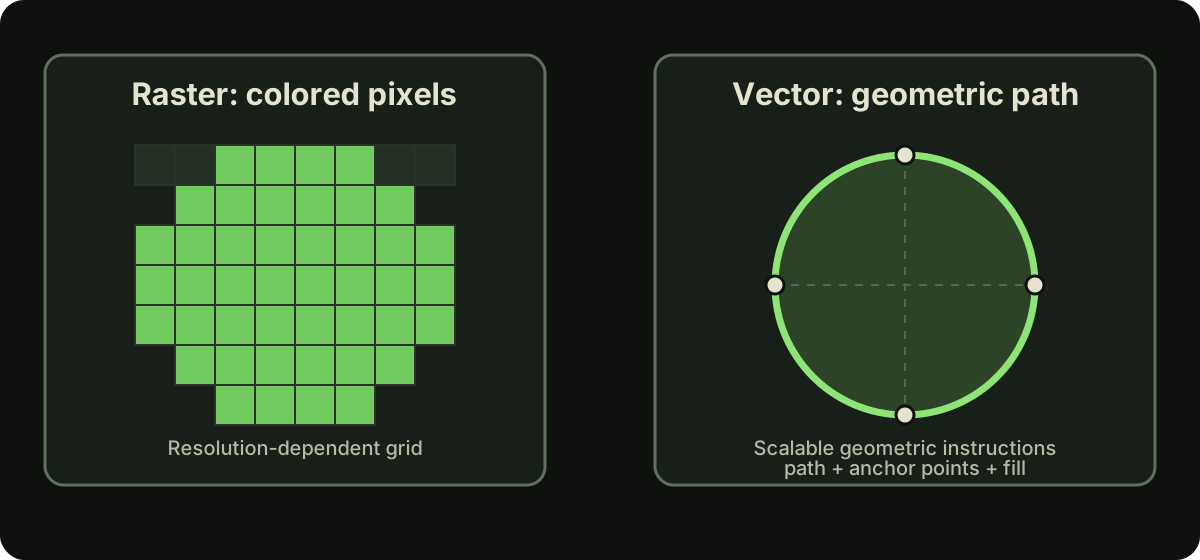
What is a raster graphic?
A raster image stores visual information in a grid, or matrix, of small picture elements called pixels, even when transparency makes the visible artwork appear nonrectangular. Common raster file extensions include .jpg, .jpeg, .png, .bmp, .tif, .tiff, and .webp. Photographs, screenshots, and digital paintings are typical raster sources. Each pixel stores a color and, in formats that support it, a transparency value at one location, much like one square on a sheet of colored graph paper.
Raster artwork is excellent for photographs, texture, soft shading, and direct image editing. Its main limitation is resolution: enlarging it eventually reveals pixels, and converting millions of individual color decisions into editable laser shapes can require substantial processing.
What is a vector graphic?
A vector graphic describes geometry with points, lines, curves, and closed shapes rather than a fixed pixel grid. A .svg file and much of the editable geometry inside a LightBurn project are vector representations.
Vectors can be resized without revealing source pixels and are convenient for editing outlines and regions. Their challenge is complexity: a detailed photograph converted too literally may become thousands of shapes or control points, creating a file that is mathematically scalable but still slow to edit or process.
Why laser workflows use both
Raster engraving typically scans an image line by line and is a natural fit for photographs or continuous-tone artwork. Vector operations follow paths or fill defined shapes and are a natural fit for outlines, logos, cut boundaries, and layer-specific settings.
Neither representation is universally better. Raster data represents pixel-based tone naturally, while vector data represents geometry as explicit, editable paths and shapes. The appropriate choice depends on the desired mark, machine process, and how much control the operator needs over individual regions.
What this application converts
Rasterizer reads and resizes the source pixels, then maps them to the enabled Rasterizer swatches available to the job. Rasterizer traces connected areas of the same swatch color into closed vector regions, applies the selected preset's cleanup or transformation rules, and resolves the geometry assigned to each output layer. Every successful job exports an .svg file, while a Material Library-backed job also exports a .lbrn2 LightBurn project containing the matched layers and cut settings.
This is not general-purpose automatic tracing. The conversion is specifically organized around palette-based color separation for laser artwork and, in Material Library-backed jobs, matching that artwork to LightBurn cut settings.
Benefits for laser preparation
The vector result organizes geometry matching each Rasterizer swatch into an identifiable output layer, supports region-level inspection in LightBurn or compatible SVG software, and avoids requiring the operator to trace and sort every color manually. Rasterizer resolves the geometry across output layers so each processed region is assigned to its intended swatch without the same area being engraved again by another layer. The result is a set of closed, layered vector regions ready for inspection, editing, and laser-job preparation.
Challenges and tradeoffs
Higher processing pixel dimensions can preserve more source detail, but they also increase color-classification work and vector-geometry complexity. Enabling more Rasterizer swatches can create more color boundaries, vector regions, and output layers. Strong simplification can make a project easier to handle but remove important detail, while too little simplification can preserve image noise and create excessive vector objects.
A vector file is not automatically a better laser job. Always inspect scale, object count, closed paths, layer order, fill behavior, and laser settings in the software that will control your laser, then test the intended process on the actual material.